
How to Remove Watermark from Images with AI
Learn how to remove watermarks from any image using AI — quick, clean results. Supports JPG, PNG, WebP. Try free on Image2.ing today.
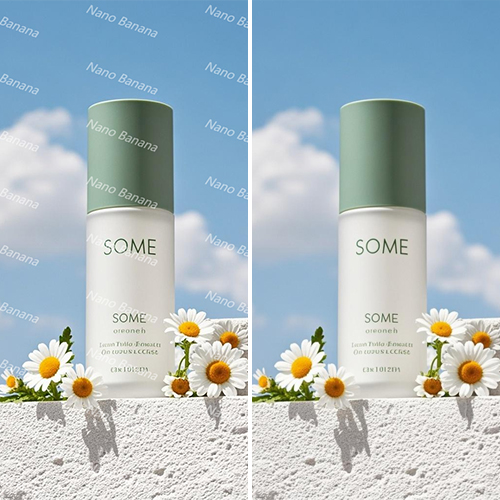
Watermarks often appear on stock downloads, scanned documents, and social media images, making reuse and commercial editing harder. Traditional Photoshop workflows are slow and can leave visible artifacts, while AI watermark removal intelligently detects marked areas and rebuilds the background in minutes.
Why use AI for watermark removal?
AI models analyze textures, colors, and lighting around a watermark to reconstruct hidden pixels. Compared with manual clone-stamp editing, AI handles semi-transparent marks, repeating patterns, and busy backgrounds more efficiently — especially for users without professional retouching experience.
Step-by-step guide
- Upload your image: Choose the photo you want to clean. JPG, PNG, and WebP are commonly supported.
- Select the watermark area: Use auto-detection or manually brush over the watermark region.
- Generate with AI: Run the repair model to fill the marked area and produce a high-quality result.
- Preview and download: Compare before/after, then export the watermark-free image.
Best practices
- Start with the highest-resolution source file for sharper detail recovery.
- For large watermarks, process the image in sections for more natural blending.
- Follow copyright rules and only edit images you have the right to modify.
With Image2.ing and other AI image tools, watermark removal, retouching, and style transfer can live in one workflow — so you create faster.
Try these AI tools
Related articles
- The Most Complete GPT Image 2 Guide — Curated for You
GPT Image 2 tutorial: 10 use cases, prompt tips, official access, and pricing. Start creating with OpenAI's latest image model today.
- GPT Image 2 Brand Design Guide: One Prompt for a Full Visual Identity
Use GPT Image 2 for brand design: logo, colors, packaging, and store visuals. Six-step workflow, prompt patterns, and designer-AI collaboration tips.
- GPT Image 2 Kids Outdoor Brand Design: From Logo to Product Launch
Build a kids outdoor brand with GPT Image 2—from logo grid and packaging to hiking shoes, jackets, model shots, posters, product sets, and a 15s explainer video. Full prompts included.